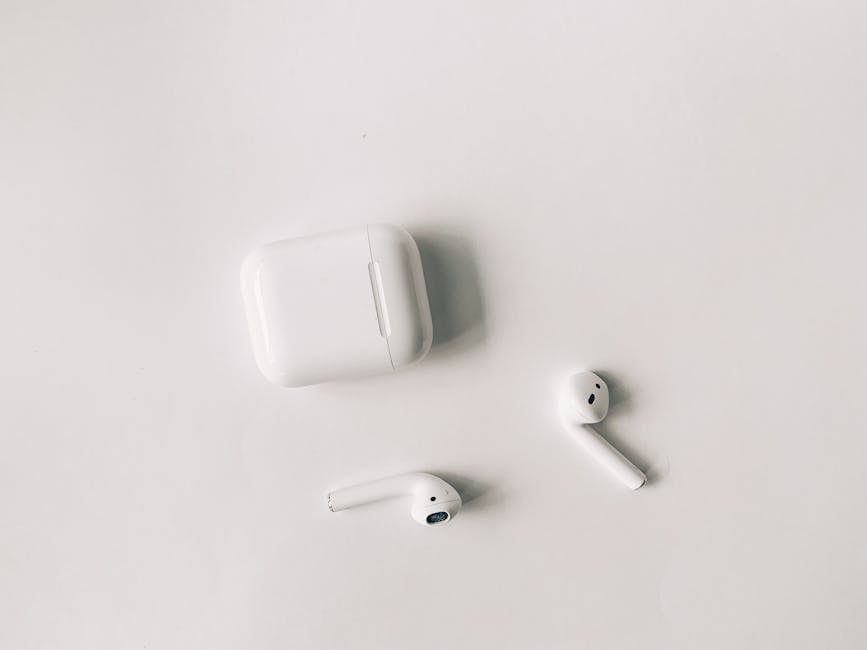
Alright, listen up. You’re trapped in the on-off-on-again Bluetooth purgatory, and every “Top 10 Fixes” article you’ve read is just pouring digital snake oil on the fire. I’ve been elbows-deep in the guts of misbehaving gadgets since before your smartphone was a twinkle in a CEO’s eye. Let me tell you, when your tech consistently refuses to play nice, it’s not random. It's a haunting. And I’ve identified the three primary poltergeists responsible for these connection debacles—the ones the user manual pretends don't exist.
1. The Mangled Digital Handshake
This is the phantom menace behind the vast majority of pairing fiascos, and almost everyone misunderstands it. When your phone first meets your Beats, they exchange a tiny, encrypted data file—a unique profile for their relationship. When that file gets scrambled by a botched software update, a random power surge, or the chaotic whims of digital entropy, the entire foundation of their connection crumbles.
Imagine this profile is a biometric keycard. The first pairing creates a flawless keycard with your Beats' unique signature. Every time after that, your phone (the security system) just scans the card and grants instant access. But when that data corrupts, the keycard is essentially demagnetized and warped. The scanner sees gibberish and slams the door shut. Frantically toggling your Bluetooth is just you, shoving that same busted keycard at the scanner over and over, expecting a different outcome. It’s madness.
The Remedy: The Scorched-Earth Protocol
A simple "forget device" is like tearing the keycard in half; you have to also bulldoze the building it belonged to. To truly exorcise this demon, you must wipe the memory from both sides.
1. Annihilate the Profile: First, on your smartphone, march into your Bluetooth settings, locate the rebellious Beats, and select "Forget This Device." This incinerates the corrupted keycard on your phone's end.
2. Purge the Network Core: Here’s the step ninety-nine percent of people skip. For an iPhone, navigate the labyrinth to `Settings > General > Transfer or Reset iPhone > Reset > Reset Network Settings`. On an Android device, you’re hunting for something like `System > Reset options > Reset Wi-Fi, mobile & Bluetooth`. Heed this warning: This act of digital sanitation will erase all your saved Wi-Fi networks. It's a necessary sacrifice to ensure you've scoured the corruption from your phone's deepest networking pathways.
3. Force-Wipe the Beats' Memory: Now, for the other party. Place the earbuds into their case and open the lid. Press and hold the case’s system button for a solid 15 seconds. The LED will eventually flash red and white—this is the visual cue for total amnesia. You haven't just rebooted them; you've performed a factory reset that obliterates their memory of every device they've ever known. Their copy of the bad keycard is now vaporized.
4. Perform a Clean System Restart: Shut down your phone and power it back on. This is non-negotiable. It allows the operating system to rebuild itself after the network purge.
5. The Formal Reintroduction: At last, with both gadgets having no memory of their past toxic relationship, you can initiate pairing as if they are meeting for the very first time. They will generate a new, pristine keycard, paving the way for a flawless connection.
2. Firmware Language Barrier
Inside your Beats is a soul—a piece of software called firmware. It has to communicate perfectly with your phone's operating system. When a new OS update rolls out from Apple (Beats' overlord), it often adjusts the secret language they use to talk to each other. If your Beats fail to properly receive their corresponding firmware update, they are suddenly speaking a different dialect than your phone. The result is a complete communication breakdown.
This disaster typically strikes because the firmware update process is fragile and secretive. It's designed to happen in the background while the Beats are charging, cased, and snuggled up next to their paired iPhone. Interrupt that delicate dance—by grabbing them too soon or walking out of Wi-Fi range—and you can brick the update, leaving the firmware in a garbled, half-translated state.
The Remedy: The Forced Update Seance
1. Conduct Reconnaissance: First, see if you can achieve even a momentary connection. If so, dive into `Settings > Bluetooth`, tap the 'i' icon for your Beats, and inspect the firmware version. A quick web search will reveal if you're running on ancient code.
2. Assemble the Update Altar: To re-trigger a failed update, you must create the perfect conditions. Place both earbuds in the charging case. Plug that case into a power outlet. Position it immediately beside your unlocked, Wi-Fi-connected iPhone or iPad. Then, for the love of all that is holy, leave them alone for a minimum of 30 minutes. This precise technological alignment is the only known ritual to summon the update servers and force the installation.
3. The Clingy Ghost Connection
At their core, Beats earbuds are digitally monogamous. They might remember past flings with multiple devices, but they will only carry on an active conversation with one at a time. The classic failure scenario unfolds when your Beats are still secretly whispering sweet nothings to your MacBook in the other room or the tablet you left on the couch—even if that device is asleep. This lingering, ghostly tether makes them unavailable. They will flat-out refuse a new pairing request from your phone, not because they can't connect, but because they believe they already are connected.
The Remedy: The Digital Exorcism Hunt
Turning off Bluetooth on your other gadgets is lazy and often ineffective. You must be a methodical ghost hunter.
1. Embark on a pilgrimage to every single tablet, laptop, smart TV, and old phone that has ever been paired with your Beats.
2. On each device, pull up the Bluetooth settings menu.
3. Scan the list for your Beats. If you find them, don't just "Disconnect." That's a temporary breakup. You must choose "Remove Device" or "Forget Device" to permanently sever the connection and banish them from the device's memory.
4. Only after you have systematically confirmed that your Beats are untethered from all other potential digital suitors should you attempt to re-introduce them to your main device.
Here is the rewrite, delivered in the persona of a jaded gadget guru.
*
The Power-Cycle Prayer: A Heretic's Guide to Actually Fixing Things
Alright, let’s get one thing straight, because I’ve witnessed this particular tech tragedy a thousand times. That go-to move—the sacred "turn it off and on again"—is a digital mirage. Sure, you might get a flicker of success from sheer dumb luck, but the fundamental instability, the ghost in the machine, is still lurking. You’re just signing up for a subscription to recurring agony. The moment you grasp the reason for the failure is the moment you graduate from being a hostage of your hardware to its warden.
Relying on a simple Bluetooth toggle to solve a deep-seated pairing conflict is the technological equivalent of trying to cure a rattling engine by detailing the hubcaps. You’re pointlessly polishing a surface-level symptom. All the while, the real cancer—the ghosted device profile, the bungled firmware handshake, that one scrap of corrupted data—is metastasizing in the device’s digital guts. The rattle might stop for a block or two, but a catastrophic breakdown on the freeway is inevitable. My "Nuke and Pave" doctrine, on the other hand, is a full engine teardown. We get our hands dirty, meticulously purge every component, and reassemble the relationship from bedrock. It's deliberate, yes, but it forges a bond you can actually trust.
You must abandon the quaint notion of simple radio waves beaming between your devices. In that fraction of a second you tap "connect," a dizzying digital ballet unfolds: a cryptographic handshake, a rapid-fire exchange of security credentials, and a dozen protocol checks, all happening behind the curtain. Once you internalize this complexity, the path becomes clear: a digital ailment demands a digital cure. By obliterating the network settings and executing a hard hardware reset, you are forcing a clean-slate re-education. You're not just hoping they start talking; you're teaching them an entirely new language from the first syllable.
Ultimately, the final calculation is a brutal one of your own time and sanity. You can either squander countless future moments in a rage-fueled cycle of re-pairing, or you can invest a single, focused ten-minute block now to perform a proper system purge. This is not about getting your Beats to work for this afternoon's commute. This is about forging an alliance between your gadgets that is resilient enough to withstand the next dozen chaotic software updates. You're not just fixing a bug; you're buying back your future patience. It’s the smartest tech investment you’ll make all week.





